How to Edit Your Player Profile on FLDRS.net
Keeping your recruiting profile current is one of the most important steps in the process. Coaches want to see your latest measurables, stats, academics, and video—so make updates anytime something changes.
What You Can Update
Depending on your portal and plan, you may be able to edit:
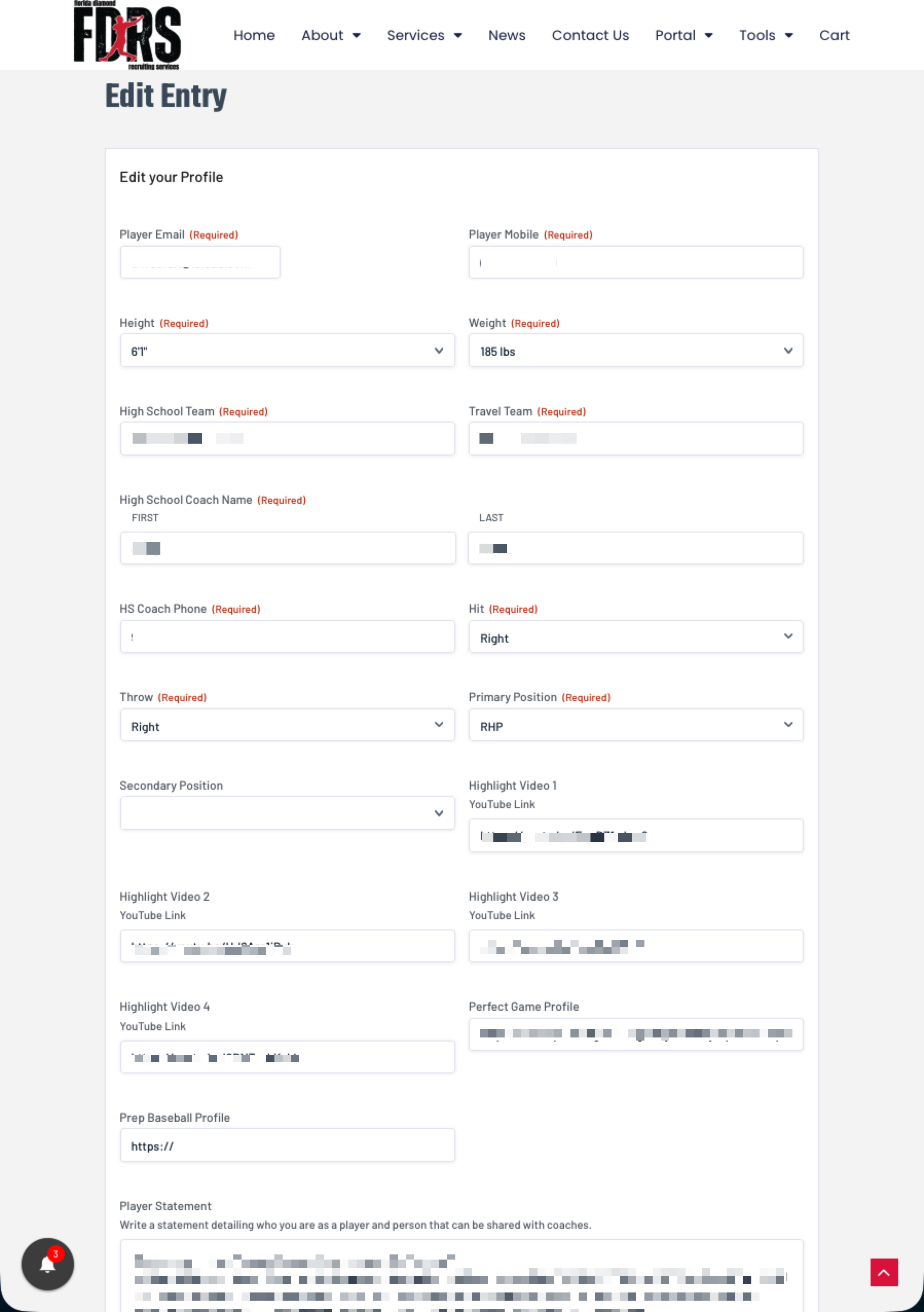
Player info (name, grad year, positions, bats/throws)
Measurements/metrics (height, weight, velo, pop time, 60, etc.)
Stats (season + summer)
Academics (GPA, test scores, NCAA/NAIA info if applicable)
Video links (YouTube, social links, highlights)
Teams, coaches, and other recruiting notes
1) Go to FLDRS.net
Open your browser and visit FLDRS.net.
2) Log In
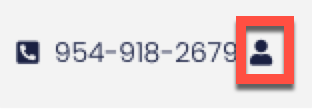
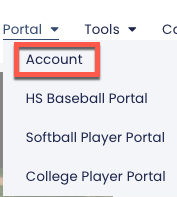
Click the account icon in the top toolbar or Portal -> Account to log in and sign in using the email address used during account setup. If you signed up using a Google account, you can now log in using that service instead of remembering two different passwords.
If you forgot your password, use the password reset option.
3) Open Your Portal (HS / College / Softball)
After logging in, you’ll land on your account/dashboard page. You have two ways of getting to your Portal Profile.
On the account page, click Recruit Profiles and you will be able to click on HS Baseball, College Baseball, or Softball.
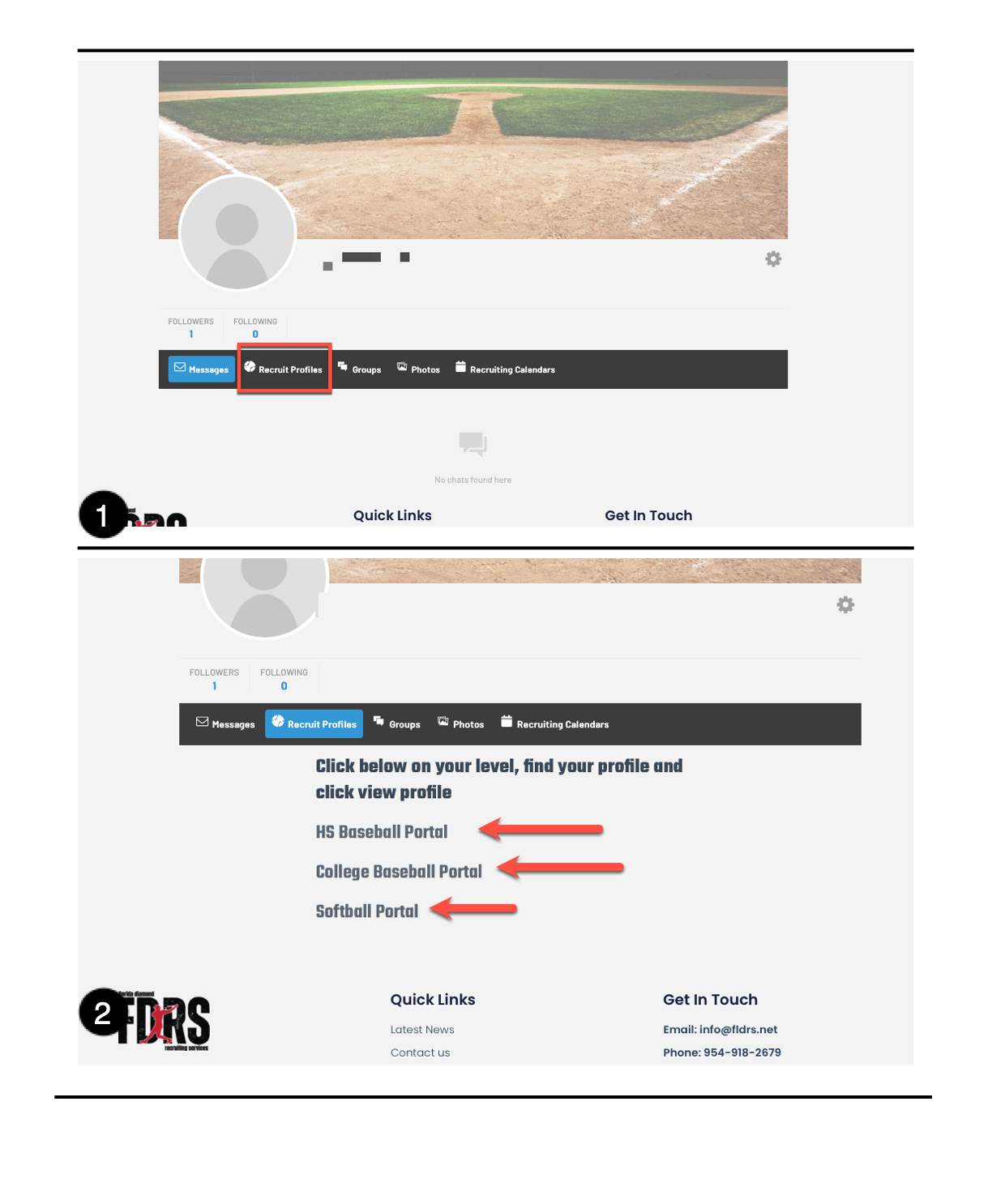
You can also navigate to the portals via the navigation/menu area:
Portal ->
HS Baseball Portal
Softball Portal
College Baseball Portal
4) Select Your Player Profile
Click the portal icon, then click your name (player profile) from the list/menu.
5) Choose “See Profile”
From the dropdown/menu options, click See Profile to open your full public-facing profile view.
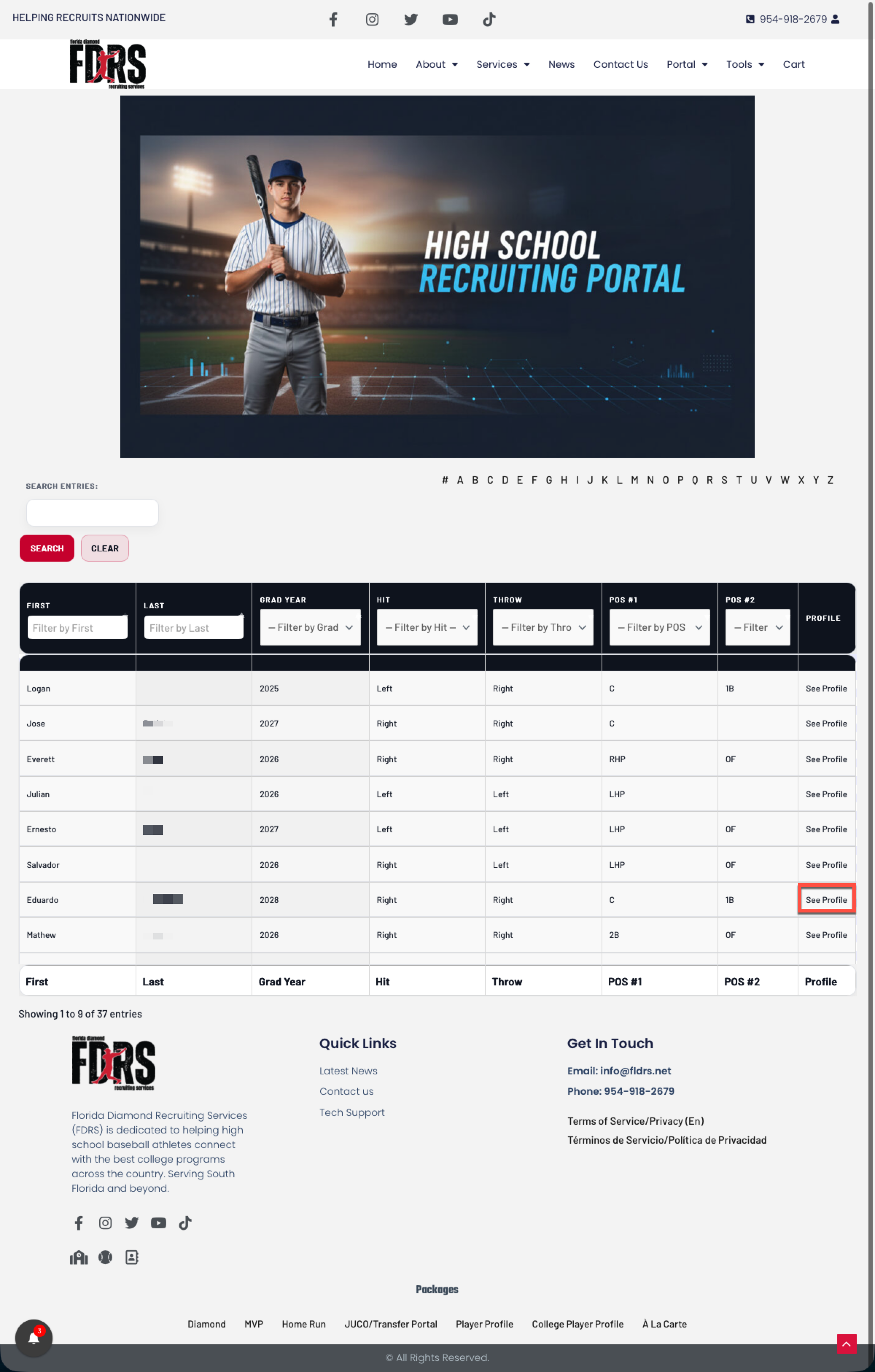
Step 5: View Profile
Choose See Profile from the dropdown.
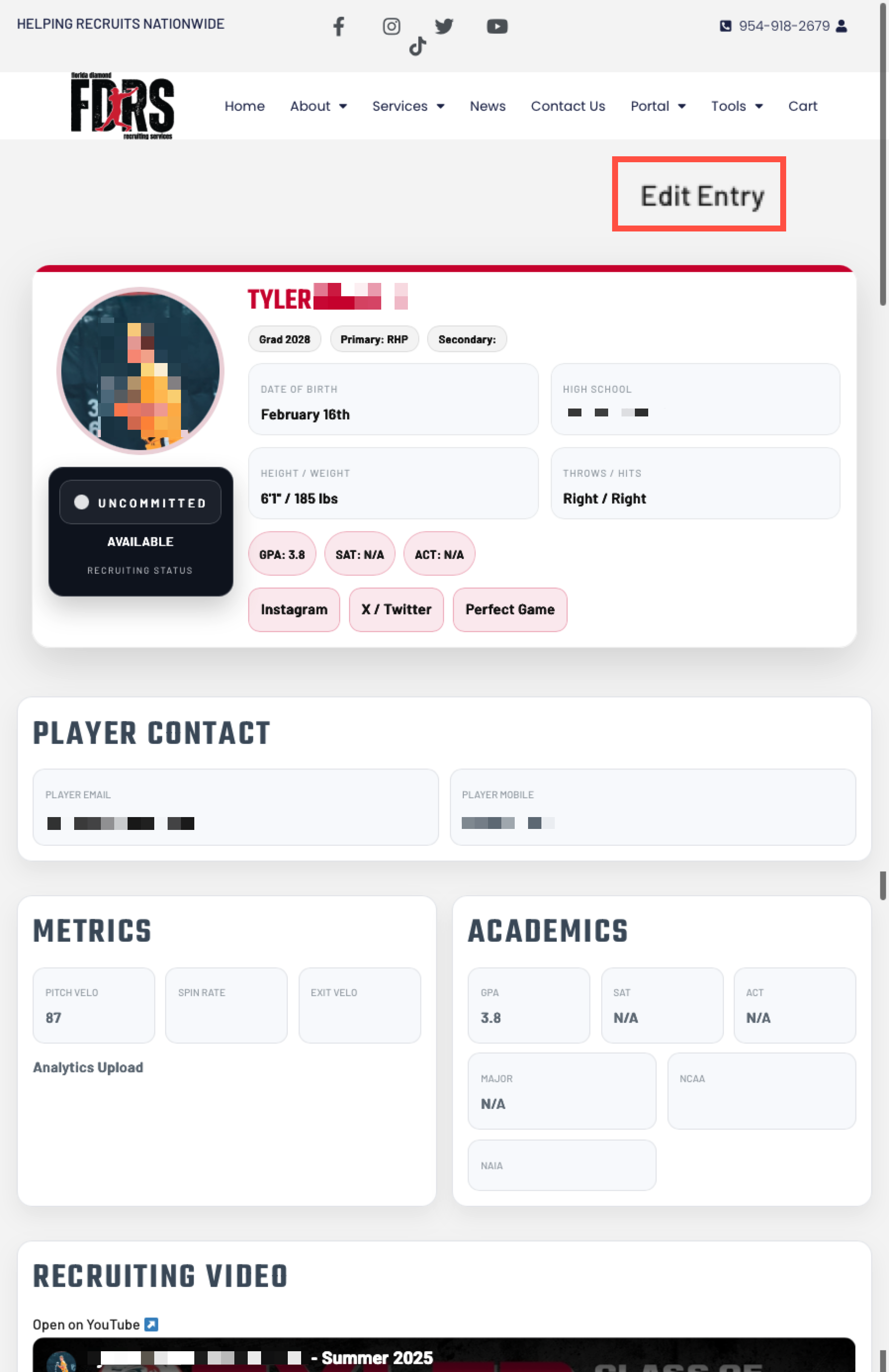
6) Click “Edit Entry”
On your profile page, click Edit Entry (typically in the upper-right area of the profile page).
7) Make Your Updates and Click “Save”
Update the fields you need, then click SAVE before leaving the page.
Important: If you navigate away without saving, your changes may be lost.
Best Practices (Recommended)
Update video links immediately after tournaments/showcases.
Keep measurables current (height/weight, velo, pop, 60, exit velo, etc.).
Update academics each grading period (GPA/test scores).
Re-check your profile from a phone after saving to confirm everything displays correctly.
Troubleshooting
I don’t see “Edit Entry”
Confirm you are logged into the correct account (the one tied to the player profile).
Try logging out and back in.
If it still doesn’t appear, your account may need support to fix permissions or profile linking.
My changes didn’t save
Make sure you clicked SAVE.
Refresh the page (or open your profile in a new tab) to confirm.
If the issue continues, contact support.
Please contact FDRS Support at 954-918-2679 or through the Contact Page.
✅ Tip: Update your profile regularly with new achievements, videos, or academic updates to stay visible to college coaches.
Was this article helpful?
That’s Great!
Thank you for your feedback
Sorry! We couldn't be helpful
Thank you for your feedback
Feedback sent
We appreciate your effort and will try to fix the article